Adopt Me Trading
Find players who have the pets you want. Post a trade ad, send offers and check every deal with our values before you trade in game.
Loading trades…
What is the Adopt Me trading board?
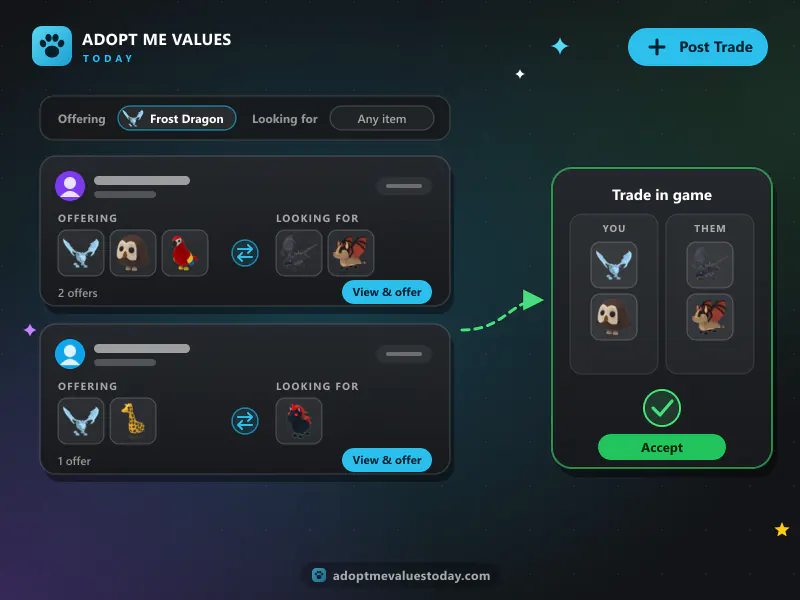
Our Adopt Me trading board is a place to find other players who want to trade. Players post trade ads with the pets and items they’re offering, and what they’re looking for. You can browse every ad for free, then log in with Roblox to post your own or send an offer.
The board helps you find the right trade partner. The trade itself always happens inside Adopt Me, in the game’s own trade window, so you can check both sides before anything changes hands.
How to post a trade ad
Posting a trade ad takes about a minute:
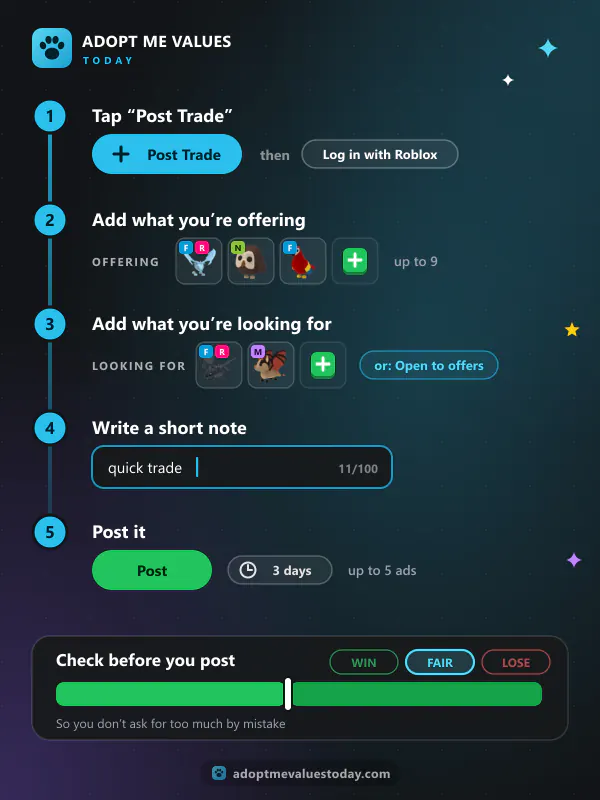
- Tap “Post Trade” at the top of this page and log in with Roblox if you haven’t yet.
- Add what you’re offering. Pick up to 9 pets or items, and choose the right version for each pet (Fly, Ride, Neon or Mega Neon).
- Add what you’re looking for. Pick up to 9 items, or leave this side empty to take any offers.
- Write a short note if you like (up to 100 characters), for example “quick trade” or “adds welcome”.
- Post it. Your ad goes on the board straight away and stays up for 3 days.
You can have up to 5 trade ads at a time. The value bar shows if your own ad is a win, fair or lose before you post, so you don’t ask for too much by mistake.
How to find a trade
The newest trade ads show first. Use the filters above the list to find the right one faster:
- Offering: pick a pet to see only ads that are offering it. This is the quickest way to find a pet you want.
- Looking for: pick a pet you own to see who wants it.
- Username: type a Roblox username to see that player’s ads.
More ads load as you scroll down. Tap “View & offer” on any ad to see the full trade and send your offer.
Sending and answering offers
To make an offer, open a trade ad and add the items you would give. The bar shows the value of both sides, and every offer gets a Win, Fair or Lose tag for the player who posted the ad.
If someone sends an offer on your ad, you can accept or decline it. Accepting one offer closes your ad and declines the other waiting offers. If you change your mind about an offer you sent, you can withdraw it while it’s still waiting.
Each player can have up to 20 offers waiting at once. My Activity shows all your trade ads and offers in one place, with their status.
What happens after an offer is accepted
When an offer is accepted, both players see a link to each other’s Roblox profile on the trade page. Then:
- Add each other as friends on Roblox.
- Join the same Adopt Me server.
- Open the trade window and add the items you agreed on.
- Check both sides carefully, then accept in the game.
After the trade, the trade page asks both of you: “Did this trade happen?” Your answer helps us keep our values close to what players really trade.
Trading board rules
These rules keep the board friendly and safe for every player:
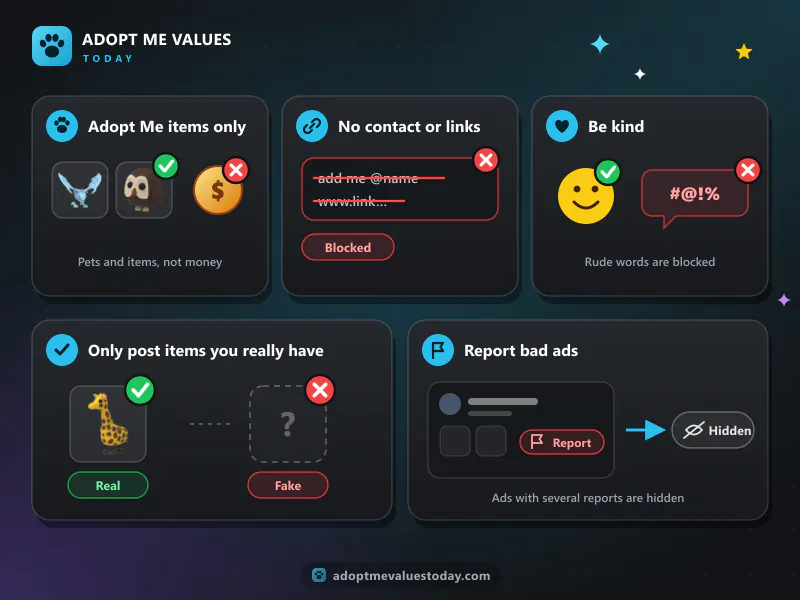
- Adopt Me items only. No trades for Robux, real money, accounts or items from other games.
- No contact details or links in notes. Notes with Discord names, social media, phone numbers or links are blocked when you post.
- Be kind. Rude or unsafe words are blocked too.
- Only post items you really have. Fake ads waste everyone’s time.
- Report bad ads. Every trade has a Report button. Ads that get several reports are hidden while we check them.
How to tell if an offer is fair
Every ad and offer on the board shows its total value from our Adopt Me value list. A trade counts as Fair when the gap between the two totals is 10% or less. A bigger gap makes it a Win for the player who gets more, and a Lose for the player who gives more.
Values aren’t the whole story, though. A pet with high demand is easier to trade later, so some players accept a small loss to get one. Always check that each pet is the version you expect, because a Neon or Mega Neon is worth much more than the normal pet.
For bigger trades with many items, put both sides into the trade calculator first. It does the maths for you while the other player waits.